What the rejection says
Guideline 2.3.3 – Performance – Accurate Metadata
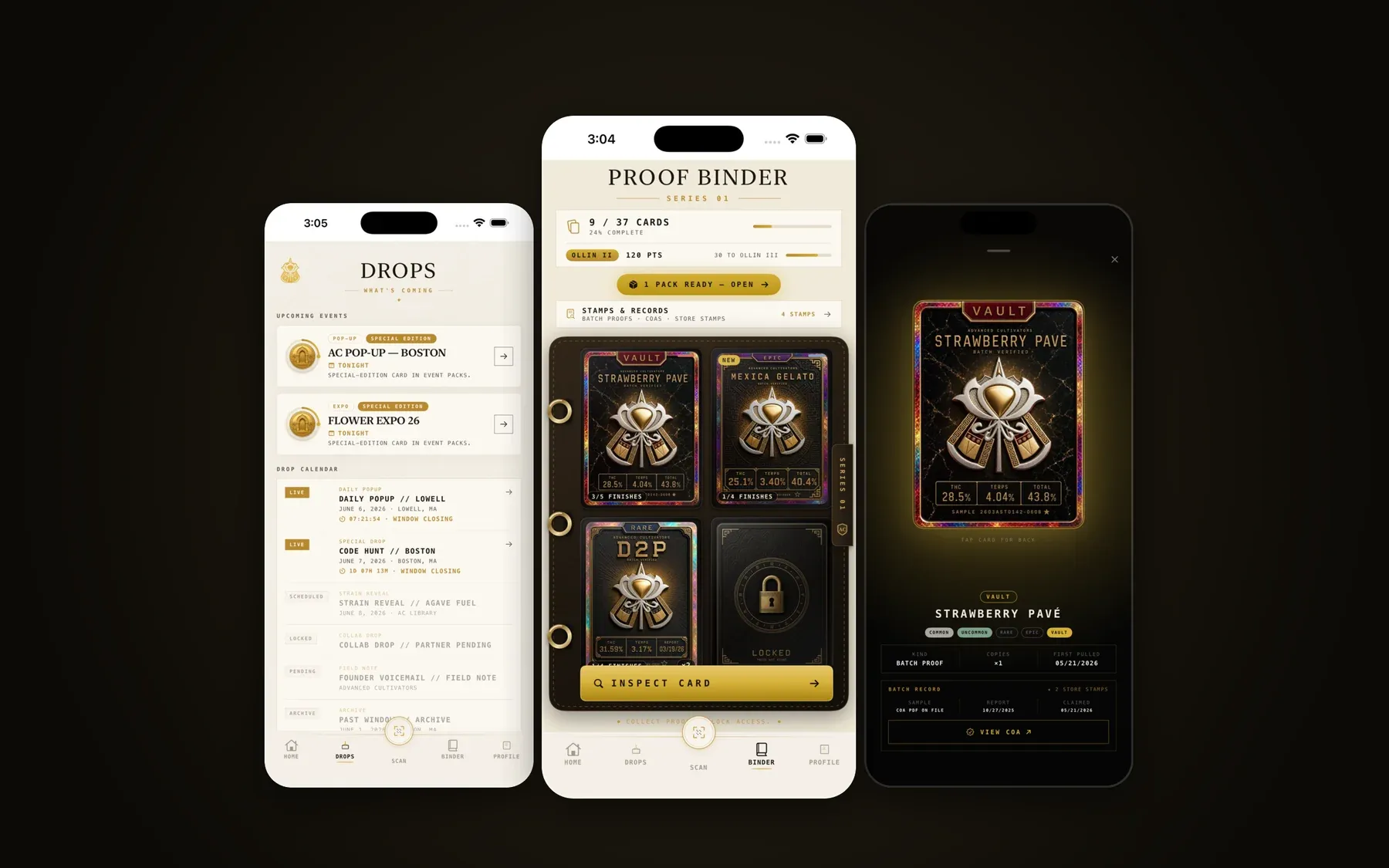
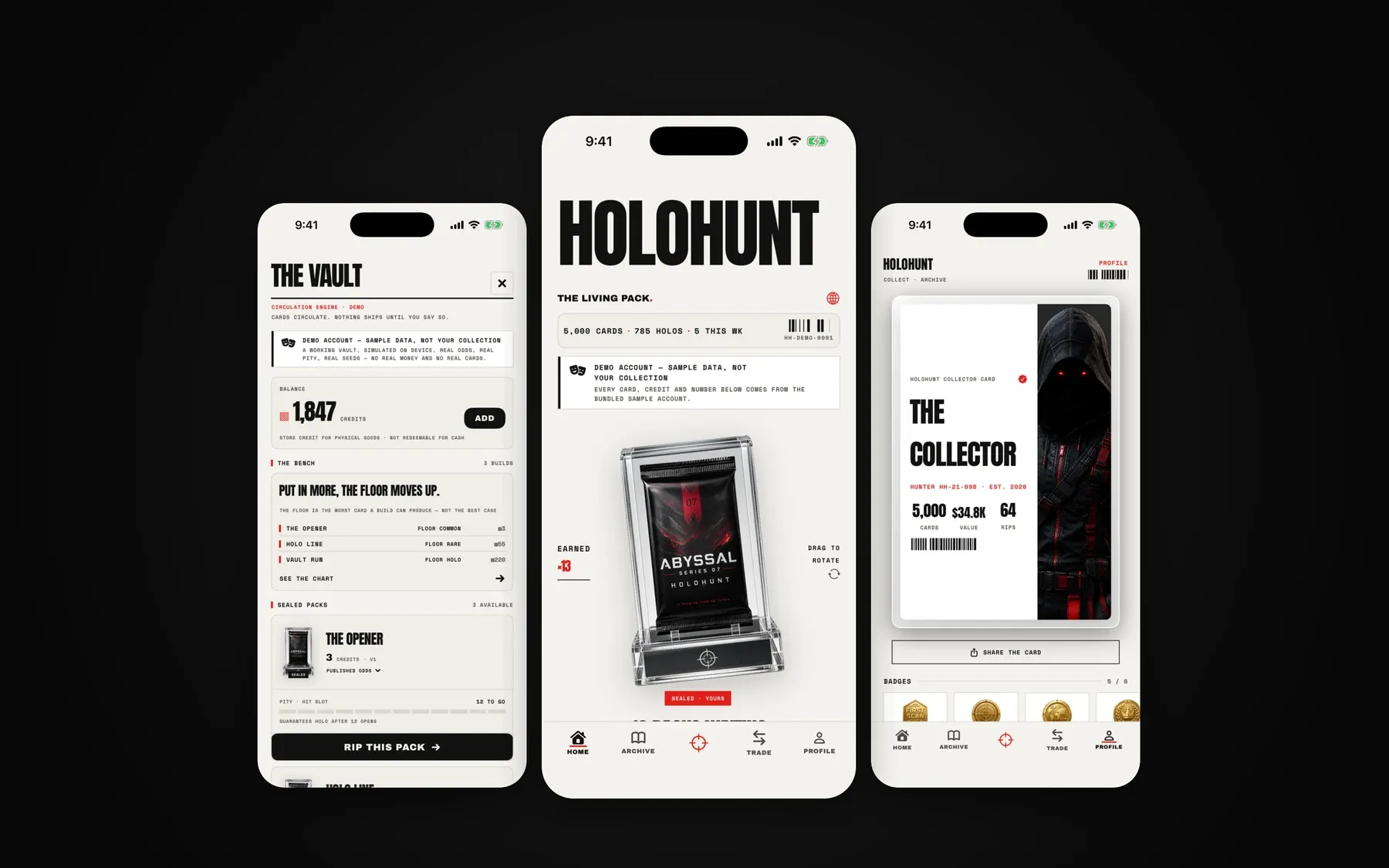
Your screenshots do not sufficiently reflect your app in use.
or
Guideline 2.3.7 – Performance – Accurate Metadata
Your app name includes terms or descriptors that are not appropriate for the metadata type.
What Apple actually means
- 2.3 (overall): metadata, “including privacy information, your app description, screenshots, and previews” should “accurately reflect the app’s core experience.”
- 2.3.3: “Screenshots should show the app in use, and not merely the title art, login page, or splash screen.”
- 2.3.7: “Choose a unique app name, assign keywords that accurately describe your app, and don’t try to pack any of your metadata with trademarked terms, popular app names, pricing information, or other irrelevant phrases… App names must be limited to 30 characters.”
- 2.3.8: metadata must be appropriate for a 4+ audience, and “For Kids” wording is reserved for the Kids Category.
Why AI-built apps hit it so often
- Mock-up screenshots made from a design or generated image instead of the real build, sometimes showing features that don’t exist yet.
- Screenshots of onboarding or login, because those are the first screens you see when you screenshot a fresh install.
- Names written like SEO titles: “FitAI – Workout Planner, Calorie Counter & Diet Coach Free”.
- Descriptions generated from the product plan, not the shipped build.
How to fix it
- Capture real screens from the release build with realistic sample data, the five or so screens where the value is.
- Frame and caption them if you like, but keep the screen itself real.
- Name: brand plus, at most, a short descriptor, 30 characters or fewer. Move other keywords to the keyword field.
- Subtitle: one clear line about what the app does. No prices, no “#1”, no competitor names.
- Description: only what the build does today.
- Check the 4+ rule for every image.
How we handle a 2.3
We capture real screens from the build, design the screenshot set, rewrite the name, subtitle, keywords and description, and reply to App Review. Most 2.3 fixes don’t need a new binary, and they’re part of every App Store Launch.
Questions
Can I use AI-generated or designed screenshots?
You can design them, with frames, captions and backgrounds, but the screen inside must be your actual app in use. Invented screens or features that aren’t in the build fail 2.3.3.
How long can my app name be?
30 characters. The subtitle is also 30. Don’t put prices, ‘free’, competitor app names or strings of keywords in either.
My app is rated 17+. Do screenshots have to be 4+?
Yes. Apple wants icons, screenshots and previews suitable for a 4+ audience even if the app itself is rated higher.
Do I need to submit a new build for a metadata rejection?
Usually not. Edit the metadata in App Store Connect and reply in Resolution Center. Some fields, like the app name, can only be changed when a version is editable.
Last reviewed 2026-09-23. Guideline quotes are from Apple’s App Review Guidelines; Apple can change them at any time.